
AI office
希沃白板
Seewo Whiteboard 5 is an interactive courseware tool specifically designed for teaching scenarios, developed by Guangzhou Shirui Electronics.
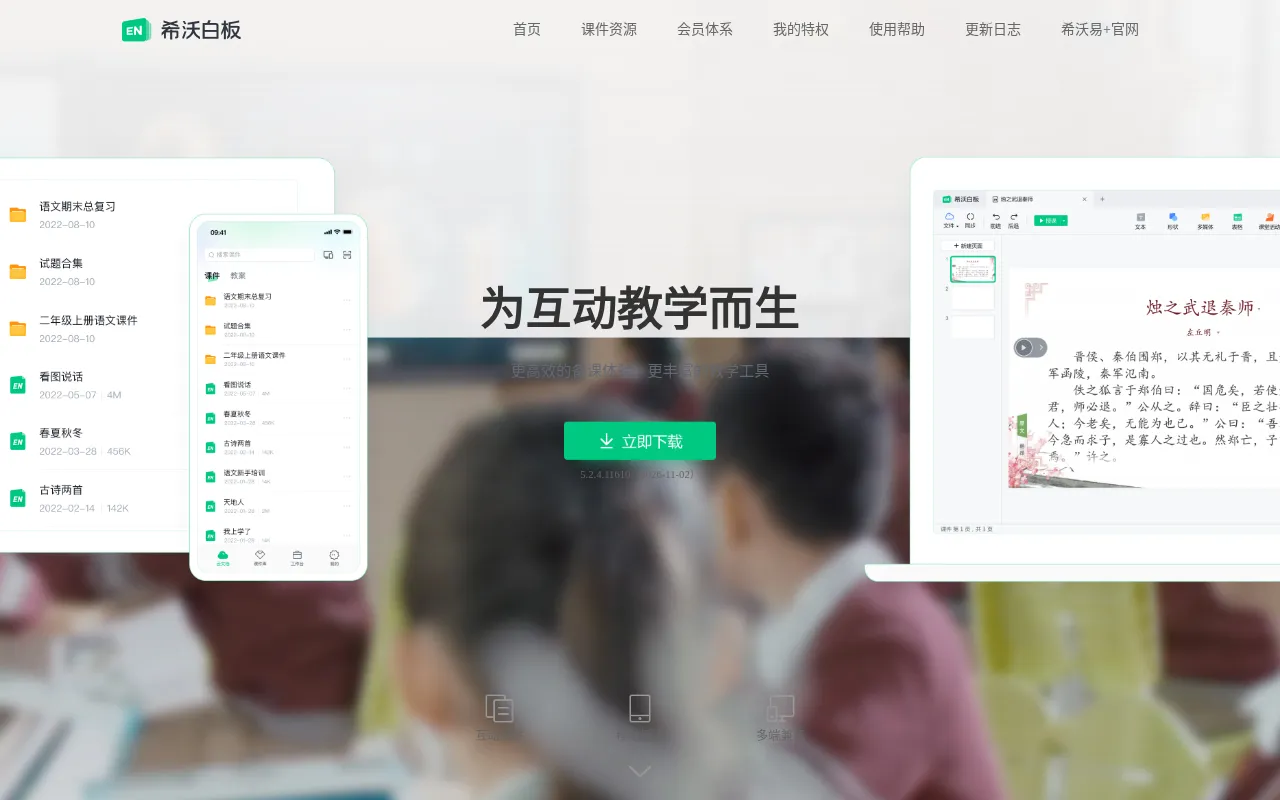
What is 希沃白板?
Seewo Whiteboard 5 is an interactive courseware tool specifically designed for teaching scenarios, developed by Guangzhou Shirui Electronics.It aims to provide teachers with a more efficient lesson preparation experience and richer teaching tools, allowing knowledge points to come alive through various animations and basic tools, making classes vivid and engaging.
The software supports multi-platform compatibility, including Windows, Mac, iOS, Android, and web browsers, enabling cloud synchronization of courseware and seamless transitions.With the 'Mobile Teaching' feature, teachers can use their phones to flip slides, annotate, and even capture and upload student work to the big screen in real-time, significantly enhancing classroom interactivity and flexibility.
Seewo Whiteboard not only offers basic subject resources and classroom activity templates but also features a membership growth system.Users can accumulate experience points through daily lesson preparation and teaching to unlock privileges such as expanded cloud storage.Whether for new teachers or seasoned educators, its simple interface allows for quick mastery and the creation of unique teaching effects.
Key features
- Interactive CourProvides various basic tools, animation effects, and subject-specific resources.Simple to operate, helping teachers easily create vivid interactive courseware.
- Mobile TeachingSupports dual-screen synchronization between phone and computer/big screen.Teachers can remotely control slide flipping and annotate using their phones, freely managing the class pace.
- Real-time ResultCapture student work or performance via phone camera and upload to the big screen in real-time, or use live streaming to fully present learning details.
- Multi-platform CCompatible with computers, all-in-one machines, web browsers, and mobile devices.Courseware is stored in the cloud, allowing one-click sharing and receiving anytime, anywhere.
- Rich Classroom ABuilt-in classroom activity templates and mind mapping tools to stimulate student interest, enhance participation, and improve teaching effectiveness.
- Membership GrowtEarn experience points through daily login, courseware creation, and teaching.Higher membership levels unlock exclusive privileges like expanded cloud storage.
How to use it
- 1.Visit the Seewo Whiteboard official website and download the client for your device (Windows/Mac/iOS/Android).
- 2.Register or log in to your Seewo account.Using a phone number or WeChat scan is recommended for account security.
- 3.Create a new courseware on the PC client, adding teaching content using subject tools, animations, and templates.
- 4.Once the courseware is synced to the cloud, log in to the same account on your mobile device to use mobile teaching controls for the big screen.
- 5.In class, use your phone to capture and upload student work, or interact with students in real-time using annotation features.
Where it fits
- K12 Classroom TeTeachers use rich subject tools and interactive activities to visualize abstract knowledge points, enhancing focus among primary and secondary students.
- Remote & HybridWith multi-platform compatibility and cloud sync, teachers can prepare lessons at home and seamlessly switch to teaching at school or online, maintaining continuity.
- Student Work ShoDuring practice sessions, instantly project excellent assignments or typical errors to facilitate class discussion and immediate feedback.
Pricing and free quota
Pricing and any free quota follow the official site.
Who it is for
- K-12 Subject Teachers
- Educational Institution Instructors
- Educators needing interactive presentations
FAQ
Which operating systems does Seewo Whiteboard support?
It supports Windows, Mac, iOS (13.0+), Android (6.0+), and web browsers, enabling multi-platform data synchronization.
How do I control courseware with my phone?
Log in to the same Seewo account on both your phone and computer.Download the mobile app to enable dual-screen synchronization, allowing you to control slides and annotate via your phone.
Where are coursewares saved?
Coursewares are saved to the cloud by default with automatic synchronization.You can access and edit your coursewares on any device logged into the same account.